Planck Space Errors: Your Debugging Checklist
Ready to get started?
Join thousands of users who are already using our platform to manage their links efficiently.
Create Your Free AccountEver feel like your digital ducks aren't quite in a row? In the fast-paced world of marketing, effective digital organization isn't just a nice-to-have; it's the absolute bedrock of a successful strategy. When you're juggling hundreds, or even thousands, of shortened links, the ability to neatly categorize them into distinct areas—what we affectionately call Spaces—becomes an undeniable necessity, not just a luxury.
But let's be real: even the most robust systems hit a snag now and then. You might find yourself staring at a dreaded "Permission Denied" screen, tearing your hair out searching for a link that seems to have vanished into thin air, or wrestling with API integrations that just refuse to acknowledge a specific project folder. Sound familiar? You’re not alone.
When we talk about "Space Errors" in link management, we're usually pointing to those frustrating issues around access, categorization, or simply retrieving your data within specific link groups. These aren't typically the kind of broken redirects that bother your users; instead, they're administrative blockers that can seriously hamper you and your team's ability to manage your digital assets effectively. It's like having all your files, but the filing cabinet key is missing, or the labels are all wrong!
This isn't just a guide; it's your personal troubleshooting playbook, meticulously crafted to help you diagnose, fix, and even prevent those pesky errors related to link organization by Space. Whether you're a powerhouse solo creator or steering an enterprise team on Planck.to, consider this your essential roadmap to getting your workflow smoothly back on track. Let's conquer these Space woes together!
The Problem Statement: When Your Spaces Go Dark
Before we jump into all the juicy fixes, it's super important to clearly define what we're up against. A Space error basically means that the logical container holding all your precious links has decided to stop behaving as expected. And trust me, that creates an immediate bottleneck. Imagine this: if you can't access a particular Space, you're locked out of editing the destination URL of a crucial live link. Or, even worse, if your API can't pinpoint a specific Space ID, your carefully planned automated SMS campaign could completely fail to generate unique short links, costing you time, effort, and potentially sales. These aren't just minor inconveniences; they can be major roadblocks.
Think of a Space as a digital folder, but one with superpowers – it organizes your links and defines who can see and modify them. When this "folder" misbehaves, it can throw your entire link management ecosystem into disarray. We're talking about things like suddenly not seeing links you *know* are there, or being told you don't have permission to view a team project that should be accessible. It’s frustrating, right?
A "Space" is an isolated, organized environment for a specific set of links. So, when errors pop up here, they're almost always related to two core things: permissions (who actually gets to see it) or identifiers (how the system finds it in the first place). Here's a quick litmus test: if your link, say planck.to/sale, works perfectly for your customers, but you can't find or manage it in your dashboard, then bingo! You've likely got a Space Error on your hands.
The fallout from these errors can vary wildly. On the milder side, it might be a slight annoyance, like having to ping an admin for access. But on the more severe end of the spectrum, it can cause critical workflow stoppages, leading to failed marketing automation, lost data, and even reputational damage. Nobody wants that! So, understanding and fixing these issues quickly is paramount.
Symptoms Checklist: Identifying the Issue Like a Pro
Alright, let's get down to brass tacks. Diagnosing the problem correctly is genuinely half the battle won. If you're experiencing any of these tell-tale signs, chances are you're grappling with a Space configuration or permission error. Keep your eyes peeled for these common culprits:
1. The "Ghost Link" Phenomenon: Now You See It, Now You Don't (in your dashboard)
You just know a specific link exists. You can confidently type planck.to/webinar-2024 into your browser, and behold, it redirects perfectly to its intended destination. Success! But here’s the kicker: when you jump into your dashboard and search for "webinar" within your current Space, you get absolutely zero results. It’s like the link is a phantom, working for users but invisible to you. Frustrating, isn't it? This is a classic symptom of a link living in the wrong Space.
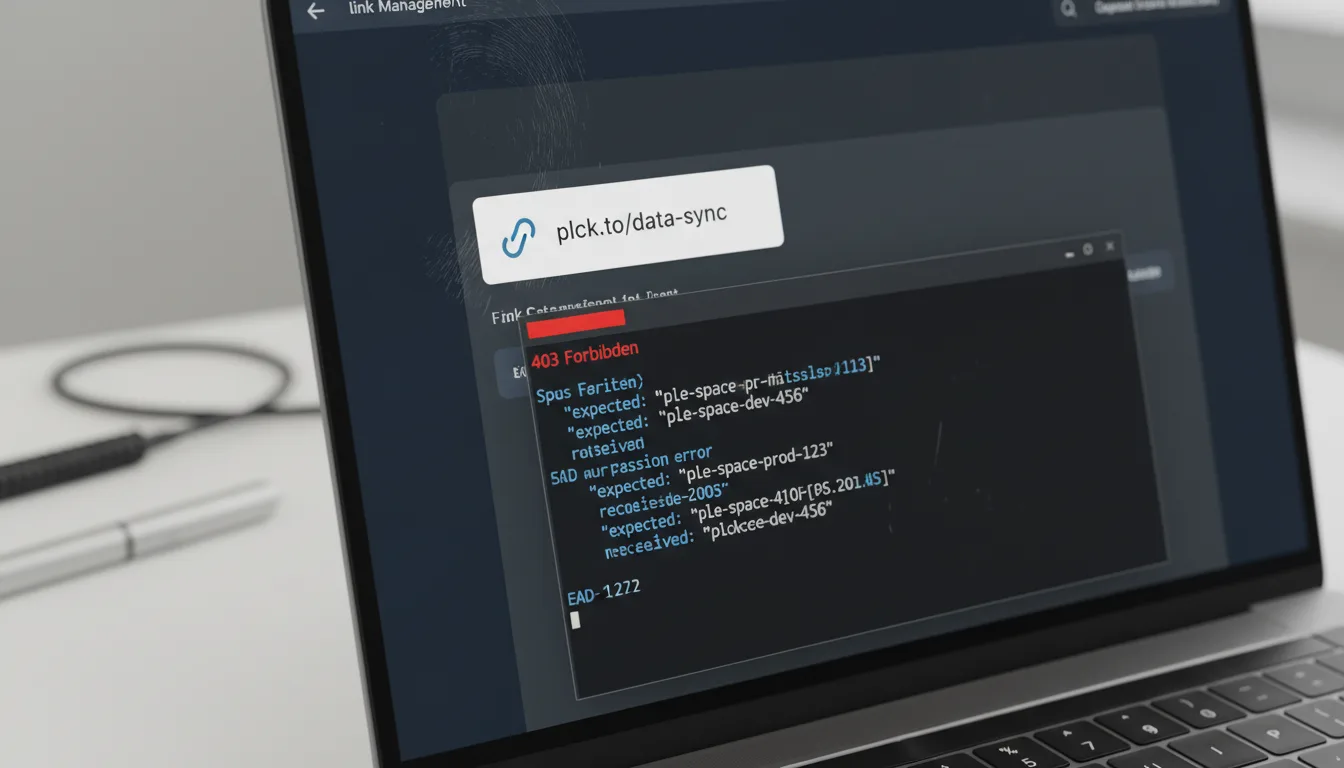
2. Access Denied (The Infamous 403 Forbidden Error)
You've just received a shared link to a specific project folder or Space from a colleague. You click with anticipation, ready to dive in, but instead, the platform slaps you with a disheartening "You do not have permission to view this Space" error. Talk about a buzzkill! This is a clear indicator that your user permissions aren't set up correctly for that particular Space, making collaboration a nightmare.
3. API Mismatches: When Automation Hits a Wall
This one's for the dev teams out there. Your developers report that their calls to the API to create new links are consistently failing. The error codes? Things like "Invalid Project ID" or "Space Not Found." The kicker is, the Space is clearly visible and active in the user interface! This often points to a mismatch between the API's understanding of a Space and how it's configured, often related to IDs or API key scopes.
4. Domain Selection Inability: Stuck with the Generic
You're trying to create a snazzy new link, perhaps in your "Personal" Space, but you notice something's off. The dropdown menu where you'd normally select your custom branded domain is greyed out, or worse, completely unavailable. You're stuck using a generic domain when you want your brand to shine! This annoying hiccup usually signals that your custom domains aren't properly linked or allowed within that specific Space.
Likely Causes: Peeling Back the Layers
Before we jump into the actual fixes, it's incredibly helpful to understand *why* these issues pop up in the first place. Knowing the root cause makes you a more effective troubleshooter, allowing you to prevent future problems too. For the most part, Space errors tend to bubble up from three main culprits:
- Role Changes & Permission Shenanigans: This is a big one! Sometimes, an administrator makes changes to team permissions – maybe intentionally, maybe accidentally – and in the process, revokes or alters access to specific Spaces for certain members. It’s easy to overlook a checkbox in a busy interface, but the impact can be huge.
- Mis-categorization: The "Wrong Bucket" Syndrome: We've all been there. Links get created in the "Default" Space instead of the specific, intended campaign Space. Suddenly, those links seem to have vanished, even though they're perfectly active; they’re just in the wrong digital folder.
- Hardcoded IDs & The Ghost of Deleted Spaces: In API-driven contexts, a specific Space ID might have been hardcoded into a script or automation. The problem arises when that Space is later archived, renamed, or outright deleted. The API, still looking for the old ID, then throws an error because it can't find its target.
Understanding these common origins is the first step toward swift resolution. Now, let's roll up our sleeves and get to the solutions!
Step-by-Step Fixes: Getting Your Spaces Back in Order
Ready to tackle these Space errors head-on? Great! Below, you'll find a series of proven procedures designed to resolve the most common issues. My advice? Always start with Fix 1. Seriously, it's a miracle worker and often resolves a whopping 80% of user-reported problems. Let’s dive in!
Fix 1: The "Lost Link" Recovery (Moving Links to Their Rightful Home)
This is for that classic "ghost link" scenario. You know you have a live link, like planck.to/newsletter-signup, and it’s working perfectly out in the wild. But for the life of you, you just can't track it down in your designated "Marketing" Space. The most probable culprit? It was accidentally created in the wrong location. No worries, we can fix this!
- Navigate to "All Links": Your first move is to broaden your search. Don't filter by Space just yet. Head straight to the master list of all links, or look specifically within the "Default" Space if your platform has one. This is often where "lost" links reside.
- Search by Alias: In the search bar, type in the alias of your elusive link (e.g., "newsletter-signup"). This should bring it right up, no matter which Space it's currently hiding in.
- Identify the Current Space: Once you've found the link, take a close look at its metadata. You'll likely see that it's currently assigned to "Default," "Personal," or some other unexpected Space. Aha!
- Execute the Move: Now for the good part! Select the checkbox right next to your link. Look for an action button that says "Move" or "Edit." Click it, and from the dropdown menu, simply select the correct Space where that link *should* belong (like "Marketing"). Confirm the move, and you're golden!
Once you’ve successfully moved the link, it immediately inherits all the access rules and permissions of its new Space. This means your team members who have access to the "Marketing" Space will now be able to see, edit, and manage that link without any hassle. Problem solved!
Fix 2: Restoring Access Permissions (When the Doors are Locked)
You can see the Space name in your sidebar, clear as day. You click on it, expecting to see your projects, but instead, you're met with an error or a completely empty view. Ugh. This almost certainly means your permissions have either been messed with, corrupted, or outright revoked. Here’s how to fix it:
- Contact the Admin (if you're not one): If you aren't the workspace owner or an administrator, your first and most crucial step is to reach out to the person who holds those keys. They’re the only ones who can truly help you here.
- Check Team Settings: The admin needs to navigate to the "Team Management" section or directly to "Space Settings" within the platform. This is where all the access controls live.
- Verify User Roles: It's absolutely vital to ensure that your specific user account is explicitly assigned to the Space in question. Remember, on platforms like Planck.to, access can be incredibly granular. Just being a "Team" member doesn't automatically grant you access to *every* "Space" within that team. Each Space often has its own set of assigned members and roles.
- Re-invite if Necessary: Sometimes, technology just needs a gentle nudge. Toggling a user's access off and then back on again can act like a refresh button, resetting any permission cache issues that might be lingering.
Hey admins, it happens to the best of us! If you've somehow locked yourself out of a Space (yes, it's possible!), double-check that you're logged into and viewing the correct "Workspace" context. You might accidentally be looking at your personal dashboard instead of the organization's overarching dashboard. A simple switch can often fix this self-inflicted lock-out!
Fix 3: Resolving Domain Constraints (When Your Custom Domain is Ghosted)
Ever tried to create a link only to find you can't select your custom branded domain? It’s stuck on the generic option, and your carefully chosen brand identity is sidelined. This isn't usually a bug; it's a Space configuration error, and it’s typically tied to how domains are managed within your account.
The Fix: The reason this happens is often because custom domains are explicitly bound to specific Spaces, largely for security and organizational clarity. It prevents someone from accidentally (or maliciously) using your premium brand domain in a "sandbox" or personal Space.
- First things first, go to your Space Settings for the Space you’re currently working in.
- Next, actively look for sections labeled something like Domain Whitelisting or Domain Binding. This is where the magic happens.
- Finally, ensure that your coveted custom domain is correctly attached and enabled for the very Space you're trying to create a link within. If, for instance, a particular domain is attached *only* to your "Enterprise" Space, you simply won't be able to use it when you're operating within the "Sandbox" or "Personal" Space. It’s all about context and explicit association.
Fix 4: API & Automation Debugging (For Our Developer Friends)
Developers, this one's for you! If you're consistently seeing errors when attempting to create, update, or retrieve links via the API, especially messages like this, then listen up:
"Error: Space ID not found or invalid permissions."
This usually boils down to a couple of common issues. Let's break them down:
Step 1: Verify the Space ID (UUID). This is absolutely critical. Do *not* assume that the Space's human-readable *name* is the identifier the API needs. You're looking for the unique alphanumeric UUID (Universally Unique Identifier). Where do you find it? Often, it’s right there in the URL bar of your browser when you're viewing that specific Space in the dashboard. Copy and paste, don't guess!
Step 2: Check API Key Scopes. Just because your API key generally has read/write access doesn't mean it's permitted to access *every* single Space. API keys often come with specific scopes that dictate which resources (like certain Spaces) they can interact with. If your key is restricted from accessing that particular Space, then your calls will fail. If necessary, generate a *new* API key specifically configured with the necessary permissions for that Space. It's better to have a dedicated key than to struggle with an improperly scoped one.
Verification Steps: Confirming Your Fixes Are Rock-Solid
You’ve applied a fix (or several!). That’s fantastic! But before you high-five yourself and move on, it’s smart to run through a quick verification routine. This ensures that your efforts haven't just patched one hole, but have truly stabilized things. Think of it as your peace-of-mind checklist:
- Creation Test: First, try creating a completely dummy link (something like planck.to/test-space-01) directly inside the target Space where you were having issues. Did it appear immediately and correctly in the list? If yes, great!
- Click Test: Now, actually click on that shiny new test link. Does it redirect exactly as you expect? We want to ensure the fundamental redirect functionality is still intact.
- Filter Test: Head back to your main dashboard. Select "All Links" (or your equivalent master list), and then apply a filter specifically for the Space name you were troubleshooting. Does your test link show up there, proving it's properly categorized?
- Team Test: This is a crucial one for collaborative environments. Ask a colleague who has "Editor" access (or whatever appropriate role) to try and change the destination URL of your test link. Can they do it without issues? This confirms that permissions for team members are now correctly configured.
If all these tests pass with flying colors, congratulations! You’ve not only fixed the issue but confirmed the stability of your Space.
Prevention Tips: Keeping Your Spaces Squeaky Clean for Good
Look, troubleshooting is reactive – we fix problems *after* they happen. But prevention? That’s proactive, smart, and saves you a ton of headaches down the road. To genuinely sidestep future Space errors and keep your link management flowing like a well-oiled machine, it's time to bake these best practices into your routine:
Implement a Clear Naming Convention
This sounds simple, but ambiguous Space names are a breeding ground for "Lost Link" errors. If you have "Marketing" and "New Marketing" as Spaces, confusion is inevitable. Instead, get specific! Incorporate dates, project codes, or clear descriptors. This way, everyone on the team knows exactly where to find (and put) links.
Bad Example: "Links 2024" (too vague, what kind of links?)
Better Example: "Q1_2024_Social_Campaigns" (crystal clear purpose and timeframe)
Another Good Example: "ProjectX_Partnerships_April" (specific project, audience, and month)
Consistency here makes a huge difference in long-term organization.
Audit Access Quarterly (or Whenever Roles Change)
Teams evolve: employees leave, interns move to new departments, and freelancers wrap up their projects. Each of these changes means access permissions might need adjusting. Make it a recurring calendar reminder – seriously, set it now! – to review who has access to which Spaces. Revoking access for old accounts or adjusting permissions for new roles isn't just about security; it prevents accidental deletions, reduces clutter, and ensures your team structure is accurately reflected in your link management system. This proactive step can save you from a major "Access Denied" headache down the line.
Use the "Default" Space Sparingly
Consider your "Default" Space like an email inbox – it's a landing zone, a temporary holding area for unsorted items. It's useful for quick, one-off links that don't need dedicated categorization. However, here’s the crucial advice: *never* run live, critical marketing campaigns or client-facing links directly from the Default Space. Why? Because it often comes with the loosest permission settings, making it highly susceptible to accidental edits, deletions, or misplacement by unauthorized team members. Always move important links to their proper, permission-controlled Spaces as quickly as possible.
When working with Planck.to, a fantastic prevention strategy is to create a dedicated "Sandbox" Space. Use this isolated environment specifically for testing new API integrations, experimenting with temporary links, or letting new team members get a feel for the system without impacting live data. This smart move keeps your production data clean, secure, and significantly reduces the risk of errors affecting your valuable customers.
Conclusion: Mastering Your Digital Filing System
There you have it! Spaces are incredibly powerful tools for segmenting, organizing, and securing your vast collection of links. But, just like any robust filing system, they absolutely demand a little TLC and regular maintenance. The good news? The vast majority of "errors" you'll encounter with Spaces aren't truly catastrophic bugs. Instead, they're typically logical issues – permissions that are a tad too tight (or too loose!), links that accidentally landed in the wrong digital bucket, or simply a bit of confusion over how domains are bound to certain areas.
By systematically checking your permissions, meticulously verifying link locations, ensuring your domains are correctly associated, and adhering to strict, clear naming conventions, you can effectively eliminate these common friction points. Remember, a beautifully organized and seamlessly functioning link management dashboard isn't just about looking good (though that’s a nice bonus!). It's fundamentally about ensuring efficiency, preventing headaches, and guaranteeing that when you craft a crucial link like planck.to/demo, you know precisely where it lives, exactly who has the power to edit it, and – most importantly – that it will perform flawlessly every single time. Here’s to a smoother, more organized link management experience!
Ready to get started?
Join thousands of users who are already using our platform to manage their links efficiently.
Create Your Free Account