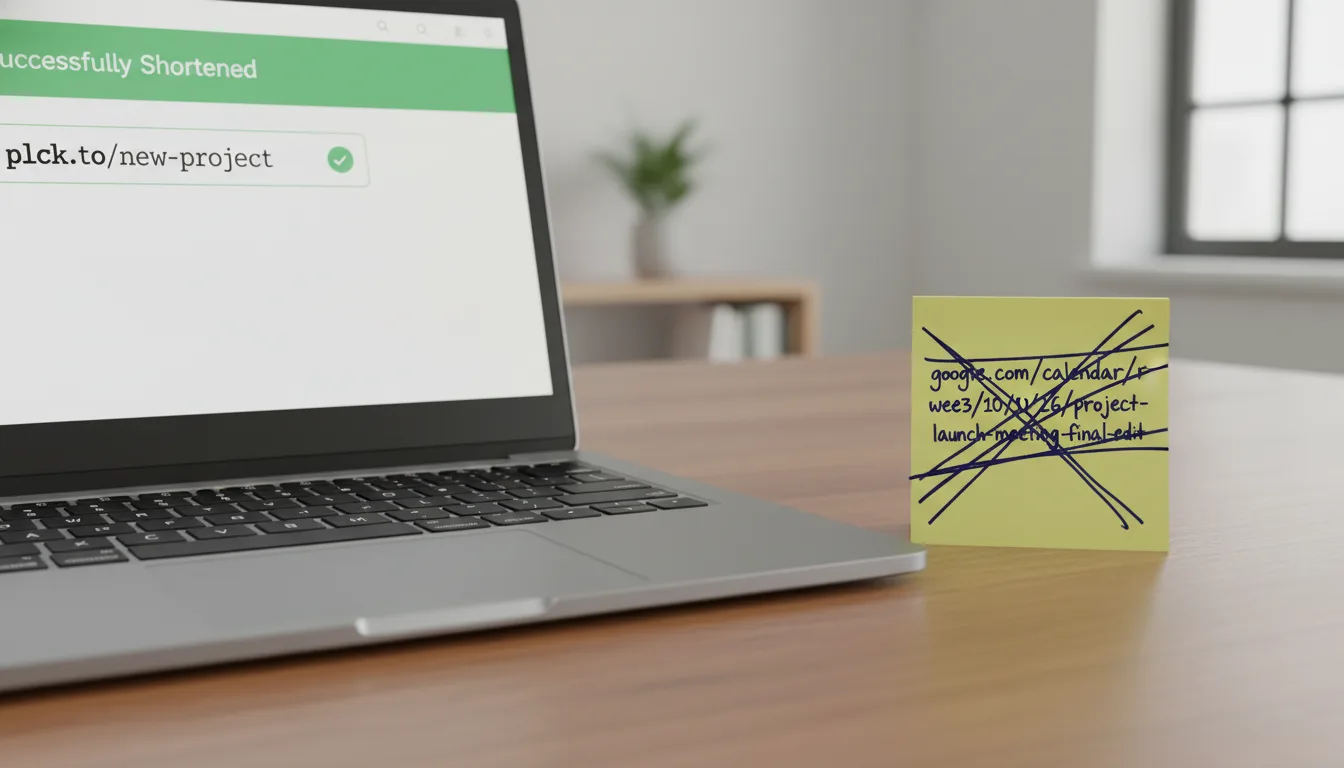
Troubleshooting Branded Planck Links: Resolve URL Errors
Introduction to Branded Link Troubleshooting
Digital marketing relies heavily on creating seamless user experiences. At the heart of that experience is the simple, humble hyperlink. When you use branded links to point your audience toward a specific campaign, product page, or resource, you are making a promise. You are promising that the click will securely and swiftly deliver them to the exact content they expect. However, when those links break or return frustrating error messages, that promise is broken, leading to lost conversions, diminished brand trust, and an interrupted user journey.
URL errors can happen for a myriad of reasons—ranging from minor typographical mistakes in the slug to complex Domain Name System (DNS) misconfigurations. As a marketer or technical administrator, knowing how to quickly diagnose and resolve these issues is a critical skill. This educational guide is designed to act as your ultimate troubleshooting playbook for branded link errors, giving you the knowledge to get your digital campaigns back on track in record time.
Troubleshooting link errors is a process of elimination. By systematically checking the destination URL, the shortening service configuration, and the domain's DNS records, you can isolate the root cause of almost any routing failure.
Prerequisites: Understanding the Anatomy of a Link
Before diving into the step-by-step troubleshooting instructions, it is essential to understand how a branded link actually works behind the scenes. When a user clicks a custom shortened link, a sequence of technical handshakes occurs in milliseconds. Familiarizing yourself with these underlying components will make diagnosing errors significantly easier.
The DNS Layer
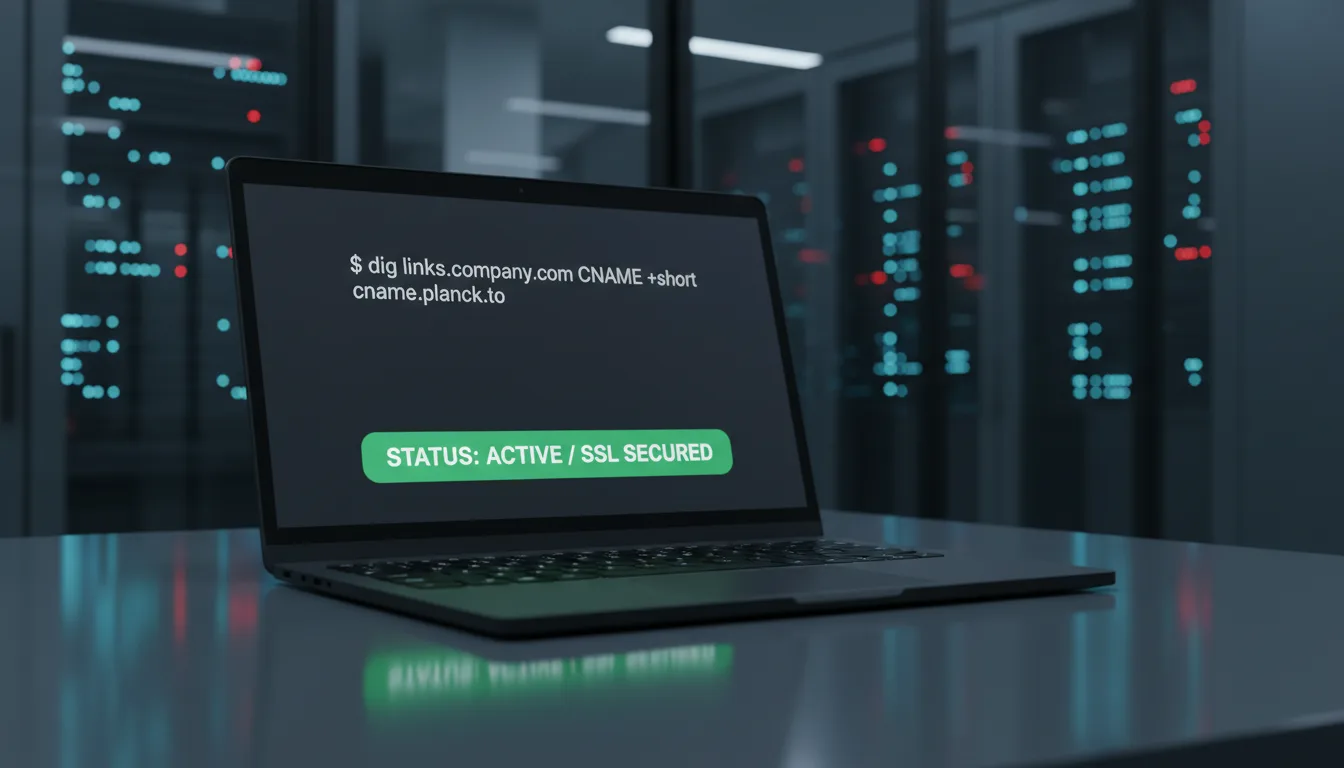
The Domain Name System (DNS) is the internet's phonebook. When you set up a branded custom domain for your links, you must point your domain to the URL shortening platform's servers. This is typically done using an A Record or a CNAME Record. If these records are incorrect, modified, or deleted, the browser will not know where to send the user when they click your link.
The Link Management Platform
Your link management platform acts as the traffic controller. When the DNS successfully routes the click to a platform like Planck.to, the platform's servers look up the specific "slug" (the part of the URL after the slash, such as the promo24 in planck.to/promo24). The platform then issues an HTTP redirect command (usually a 301 or 307 redirect) that tells the browser exactly where the final destination resides.
The Destination URL
The final piece of the puzzle is the target website itself. Even if your DNS is flawless and your shortening platform is functioning perfectly, the link will appear "broken" to the end user if the destination page has been moved, deleted, or is experiencing server downtime.
Always test your final destination URLs in an Incognito or Private Browsing window before feeding them into your link shortener. This ensures the page is publicly accessible and not inadvertently hiding behind an administrative login wall or relying on locally cached data.
Step-by-Step Instructions: Diagnosing and Fixing Link Errors
When an error is reported, panic is not a strategy. Instead, follow these methodical steps to isolate the variable that is causing the malfunction.
Step 1: Isolate the Destination URL
The most common cause of a broken branded link has nothing to do with the shortening service; it is an issue with the endpoint. First, log into your link dashboard, locate the broken link, and copy the long, original destination URL.
- Paste the destination URL directly into your browser.
- If it fails to load, the issue is on your website's server, not your link management tool. You may need to update the shortened link to point to a live page.
- If the page loads perfectly, proceed to Step 2.
Step 2: Validate the Short Link Settings
Sometimes the error is simply a matter of configuration within your dashboard. Review the specific link's settings to ensure accuracy.
- Check for typos: Ensure that the base domain and the slug are spelled correctly.
- Check link expiration: Some links are set to expire automatically after a certain date or click threshold. Verify that the link hasn't inadvertently crossed its expiration parameters.
- Check link targeting: If you are using advanced features like mobile deep-linking or geo-targeting, ensure those specific routing rules are correctly configured.
Step 3: Verify DNS Configuration
If the destination works and your dashboard settings are correct, the issue is likely rooted in your domain's DNS settings. This happens frequently when marketing teams switch domain registrars or when IT departments clean up "old" DNS records without realizing they are tied to a live marketing tool.
Log into your domain registrar (e.g., Namecheap, GoDaddy, Cloudflare) and check your DNS records. Ensure that your branded domain's A Record or CNAME strictly points to the values provided by your link management platform.
Once you correct a DNS record, remember that changes can take anywhere from a few minutes to 48 hours to fully propagate globally. Use a free tool like DNS Checker to verify that your domain is pointing to the correct servers worldwide before concluding the fix is successful.
Step 4: Inspect SSL/TLS Certificates
Modern web browsers enforce strict security standards. If your branded link does not have a valid SSL Certificate, browsers like Chrome and Safari will block the redirect entirely, displaying a massive "Your Connection is Not Private" warning page to your users. When utilizing Planck.to, SSL certificates for custom domains are typically provisioned automatically, but if you recently updated your DNS, it may take a short window for the new secure certificate to be issued and verified.
Examples: Decoding Common HTTP Error Codes
When troubleshooting, the browser will usually give you a specific error code. Understanding what these codes mean allows you to bypass guesswork and head straight for the solution.
1. The 404 Not Found Error
A 404 error means the server was reached successfully, but the specific page or link could not be located. In the context of branded links, this usually means one of two things: the slug does not exist in your link platform, or the destination URL you are redirecting to has been deleted.
"A 404 error is essentially the internet's way of saying, 'I know the building you're looking for, but the person you want doesn't work here anymore.'"
How to fix it: Verify that your user is typing the link exactly as it was created. If you created planck.to/Webinar, but the user typed planck.to/webinar, the case-sensitivity might trigger a 404 depending on your settings. Secondly, double-check that the link hasn't been archived or deleted in your dashboard.
2. The 500 / 502 / 503 Server Errors
Errors in the 500-range indicate a server-side problem. If a user clicks your link and gets a 502 Bad Gateway or a 503 Service Unavailable, the web server hosting the destination page is likely overwhelmed with traffic or undergoing maintenance.
How to fix it: Check the status of your destination website's hosting provider. Because the error is happening at the endpoint, your short link is technically functioning correctly by passing the traffic along—it's the destination server that is dropping the baton.
3. ERR_TOO_MANY_REDIRECTS (Redirect Loops)
This frustrating error occurs when a link points to a destination that then points back to the original link, or gets caught in a continuous loop of URL forwards. The browser eventually gives up and displays this error to protect the user's device from crashing.
How to fix it: Review the destination URL. If your short link points to a page that forces an automatic redirect (such as an HTTP to HTTPS rule, or a language localization rule), ensure that the final destination URL you input into the link shortener is the absolute, final endpoint of that chain.
Common Mistakes in Branded Link Management
Prevention is the best cure. By understanding the most common pitfalls that marketers encounter, you can set up proactive systems to avoid link breakage altogether.
Ignoring Case Sensitivity
One of the most frequent support queries involves case sensitivity. In the architecture of the web, the domain name is case-insensitive, but the URL path (the slug) is usually case-sensitive. Therefore, planck.to/SummerSale is fundamentally different from planck.to/summersale.
When communicating links in podcasts, print materials, or videos, users will almost always type them in lowercase. Always ensure that your primary link slug is lowercase, or utilize a platform feature that forces lowercase routing to avoid frustrating user errors.
Forgetting Domain Renewals
It sounds incredibly simple, but allowing a custom domain to expire is a leading cause of massive link outages. If you register a specific short domain purely for your link branding, it can be easy to forget about it since you aren't hosting a massive website on it. If the domain expires, your DNS records vanish, and every single link utilizing that domain will instantly break.
Always enable "Auto-Renew" for your branded domain names at your registrar, and ensure the credit card on file is up to date. An expired domain can cause immediate, catastrophic failure across all your active marketing campaigns.
Overcomplicating UTM Parameters
UTM parameters are vital for tracking campaign performance in Google Analytics. However, poorly formatted UTM strings can break the destination URL. If you accidentally include spaces, duplicate question marks, or invalid characters in your UTM parameters before shortening the link, the destination server might reject the incoming request.
Always construct your destination URLs using a dedicated UTM builder tool, test the long URL to ensure the target website accepts the parameters without returning an error, and only then proceed to shorten it into a clean branded link.
Advanced Troubleshooting: Browser and Cache Issues
Sometimes, you may have successfully fixed a broken link, but you or your clients are still seeing an error. This "ghost error" phenomenon is almost always related to caching.
Local Browser Caching
Browsers like Chrome, Firefox, and Edge are designed for speed. When they encounter a 301 Permanent Redirect (the standard redirect type for short links), they often save that routing information locally. If you update the destination of a short link, your browser might still forcefully direct you to the old, broken destination because it relies on its saved memory rather than asking the server for fresh instructions.
To bypass local browser caching during testing, always test your shortened links using an Incognito or Private Browsing window. If the link works in Incognito mode but fails in your normal browser, the issue is resolved globally, and you simply need to clear your local cache.
DNS Caching
Similarly, operating systems and Internet Service Providers (ISPs) maintain their own DNS caches. If you recently updated your domain's CNAME records to point to your shortening platform, it might take a while for ISPs to recognize the new path. If you are technically inclined, you can "flush" your computer's local DNS cache via the Command Prompt (Windows) or Terminal (Mac) to force your system to fetch the latest, correct routing data.
Conclusion: Mastering Link Reliability
A beautifully crafted marketing campaign is entirely dependent on the structural integrity of its pathways. Branded links are invaluable tools for increasing brand recognition and click-through rates, but they introduce a layer of technical complexity that requires a vigilant eye.
By understanding the anatomy of how a link resolves—from the DNS lookup to the SSL handshake to the final HTTP response—you transform yourself from a passive link creator into an active link manager. A reliable link infrastructure, powered by a robust service like Planck.to, ensures that you have the analytics and dashboard controls necessary to monitor these pathways.
When an error inevitably occurs, resist the urge to immediately rebuild the campaign. Instead, follow the troubleshooting steps outlined in this guide: isolate the destination URL, verify your dashboard settings, validate your DNS, and inspect your SSL status. By approaching link errors systematically, you will minimize downtime, preserve your tracking data, and ensure a flawless experience for your audience every single time they click.
Ready to get started?
Join thousands of users who are already using our platform to manage their links efficiently.
Create Your Free Account